

Designing Visual Information

Visual information can include track images, programme images, presenter photos, or promotional content. Whatever you create, it needs to be instantly readable while someone is driving.
Design for legibility
Section titled “Design for legibility”Visual information appears on screens while drivers are focused on the road. They need to understand what they’re seeing in a quick glance.
Understanding contrast ratio
Section titled “Understanding contrast ratio”Contrast ratio measures the difference in brightness between text (or icons) and its background. It’s expressed as a ratio, like 4.5:1 or 7:1.
A higher ratio means more contrast, which makes text easier to read. For example:
- 4.5:1 means the text is 4.5 times brighter (or darker) than the background
- 7:1 means the text is 7 times brighter (or darker) than the background
Minimum contrast requirements:
- Minimum contrast ratio: 4.5:1 for all text and icons
- Preferred contrast ratio: 7:1 for the most important information
How to check contrast ratio:
Use a contrast checker tool like colorcontrast.app to verify your designs. Simply enter your text color and background color, and the tool will tell you if your contrast ratio meets accessibility requirements.
Avoid glare:
Don’t use pure white (#FFFFFF) for text, backgrounds, or large areas. Pure white creates glare in vehicle cabins, especially in low-light conditions. Instead, use light greys like #E6E6E6 for light-colored text and elements. This maintains high contrast while reducing glare.
Choose the right background approach
Section titled “Choose the right background approach”Image showing three background treatments:
Good: Solid background
Text on a solid color background provides the clearest, most reliable contrast. This is the safest approach for ensuring text remains legible.
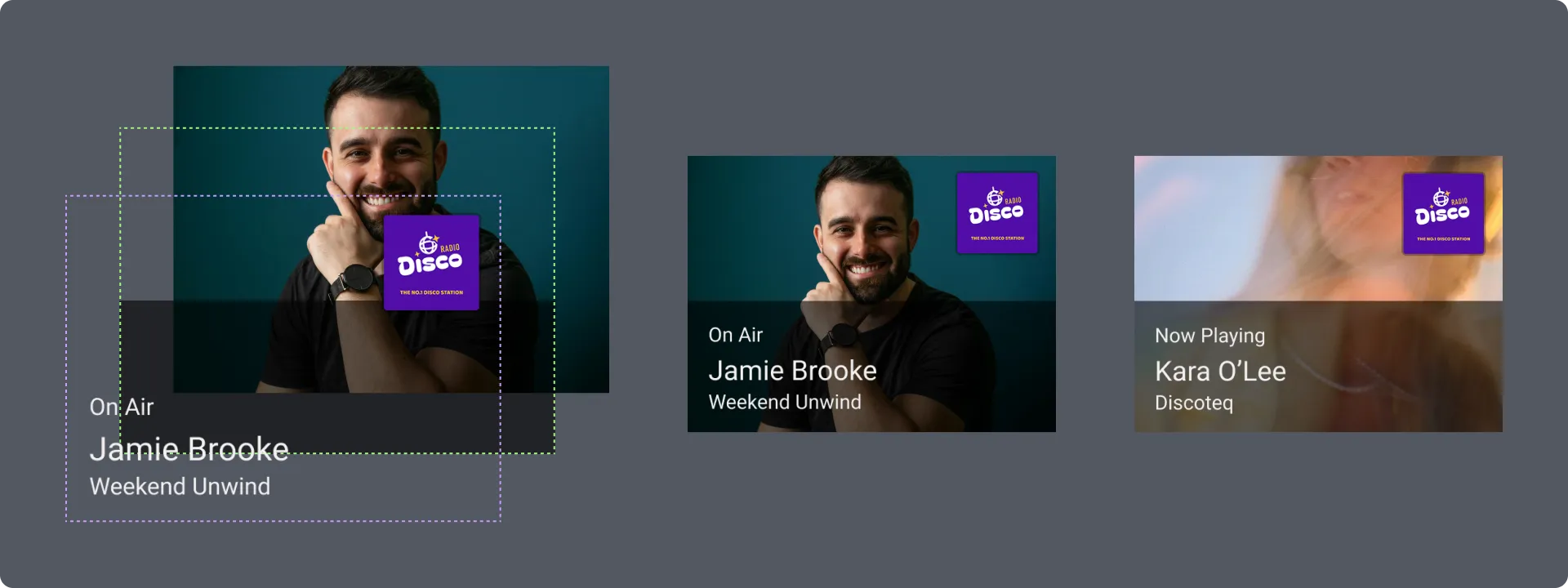
Good: Text background panel
Adding a semi-transparent panel (typically 40-60% opacity) behind text creates clear separation from photographic backgrounds while maintaining contrast.
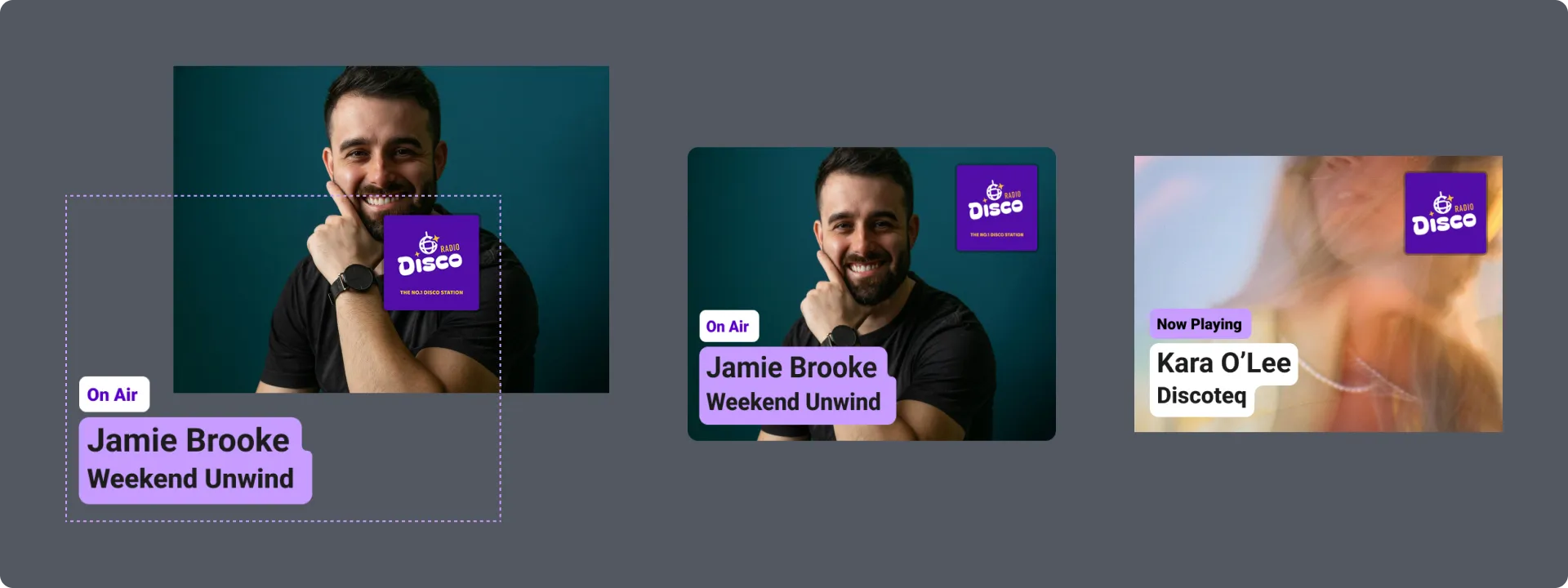
Good: Gradient background
Subtle gradients can work well if they maintain sufficient contrast with all text. Test that contrast remains above 4.5:1 across the entire gradient.
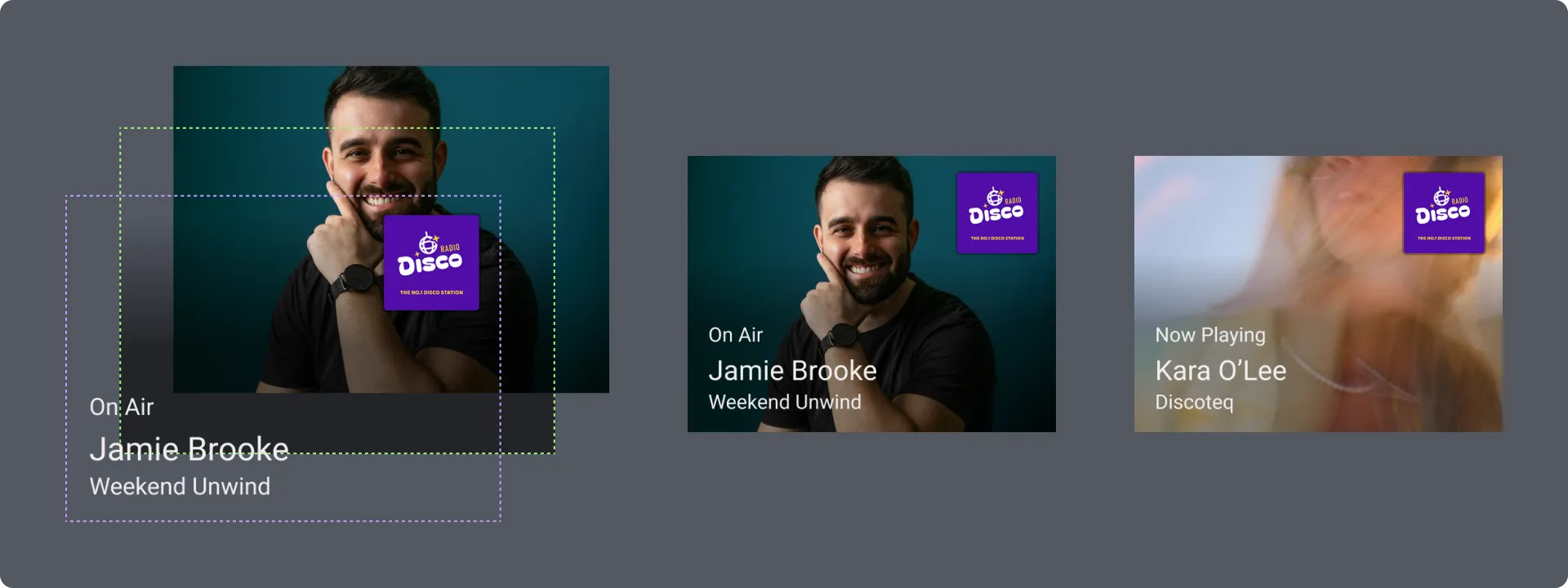
Examples of visual information
Section titled “Examples of visual information”Good examples:
Image showing four good examples:
Presenter image 1
Text on a semi-transparent dark panel at the bottom of the image creates clear separation from the photograph. “On Air”, presenter name, and programme title are all easily readable.
Presenter image 2
Text on a light semi-transparent panel provides strong contrast against the darker background. The panel ensures text remains readable regardless of what’s behind it.
Track image
”Now Playing” label and artist/track information sit on a semi-transparent panel, making text stand out clearly against the photograph.
Advertisement
Brand name and headline use high-contrast placement. The white panel on the left provides a clean background for text, while the colorful product image on the right remains visible.
What to avoid:
Image showing four bad examples:
Presenter image 1 - Poor contrast
Text placed directly on a busy, light-colored background without a panel. White and light-colored text blends into the background, making it difficult to read.
Presenter image 2 - Insufficient separation
Text lacks a background panel and sits directly on the photograph. While slightly more readable than the first example, contrast is still insufficient for quick glance reading.
Track image - Text on complex background
Large text placed directly on a dark area of the photograph. The text color is too similar to the background, creating poor contrast and making it hard to read quickly.
Advertisement - Too much text, poor hierarchy
Small body text is difficult to read at a glance. There’s too much information competing for attention, and the text lacks sufficient contrast in places.
Keep backgrounds simple
Section titled “Keep backgrounds simple”- If using photographic backgrounds, apply blur and a semi-transparent dark overlay (typically 40-60% opacity) between the background and any text
- This removes fine detail that competes with text and increases contrast
- Use darker or lighter values behind text so it has clear separation from the background
- Avoid placing text on areas of similar brightness or color
What to avoid
Section titled “What to avoid”- Pure white (#FFFFFF) for text, backgrounds, or large areas
- Detailed or busy backgrounds that compete with text
- Text placed directly on photographs without an overlay or panel
- Text colors that are too similar in brightness to the background
- Bright backgrounds that create glare
Image specifications
Section titled “Image specifications”Visual Information is provided as a single JPG or PNG image in the sizes specified earlier in this document.
Keep it relevant
Section titled “Keep it relevant”Make your visual information relevant to what’s being heard right now:
- Show the current track, artist, or album art
- Display the current programme or presenter
- Feature timely promotional content
Don’t include information that’s already shown in the interface, like station name, date, time, or temperature.
Test your designs
Section titled “Test your designs”Before sending visual information:
- Verify contrast ratios meet accessibility requirements (4.5:1 minimum, 7:1 preferred) using colorcontrast.app
- Test visibility in both bright and low-light conditions
- Ensure the most important information is clear in under 2 seconds
- Check that text remains readable when the image appears at different sizes in the interface