

Buttons
Hard Keys
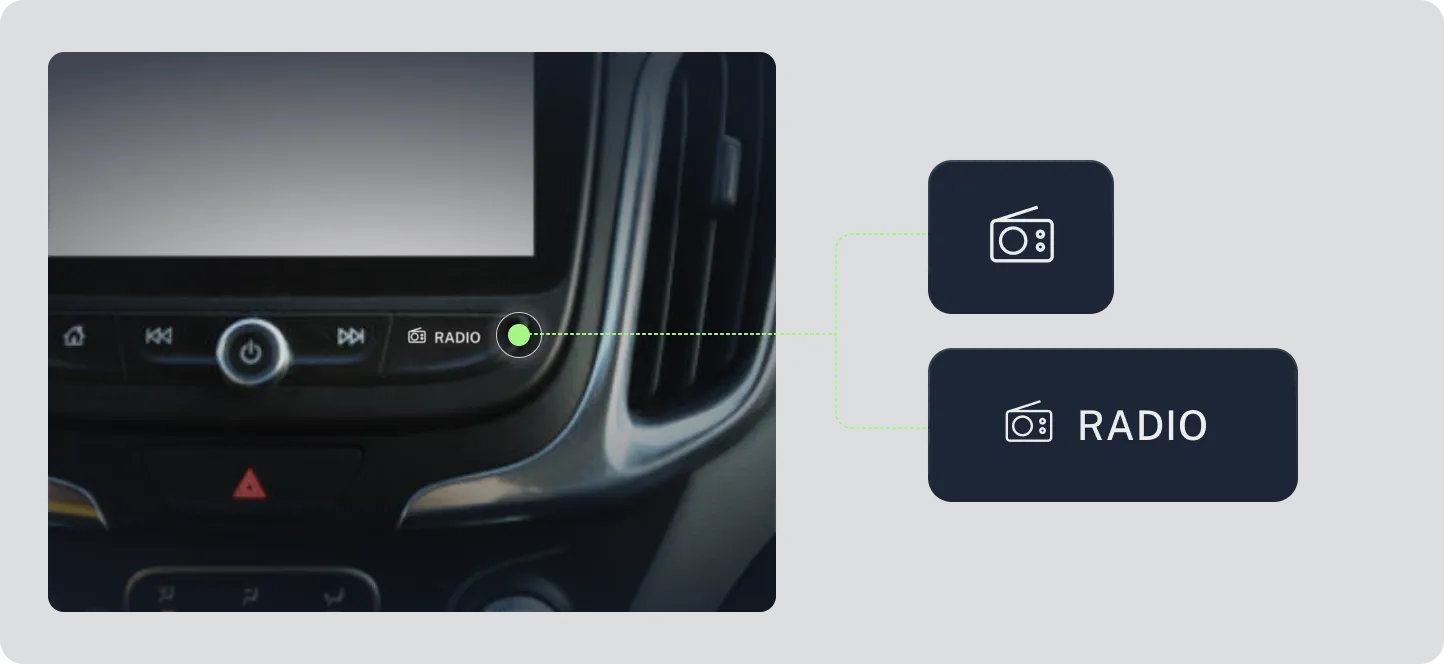
Section titled “Hard Keys”Hard keys are the physical buttons on a vehicle’s dashboard or steering wheel that allow drivers to interact with the in-vehicle interface without taking their eyes off the road. When designing hard keys, it is essential to consider factors such as size, shape, placement, and tactile feedback to ensure they are easy to locate and operate while driving.
When designing buttons and hard keys for in-vehicle interfaces, several key considerations must be taken into account to ensure usability, safety, and accessibility. The following guidelines provide a framework for creating effective button designs that enhance the user experience while driving.
-
Visibility and Size: Line icons must be large enough to be easily seen at a glance, especially given the dynamic and safety-critical nature of the driving environment. Research suggests icons in central consoles should be between 12mm and 18mm for optimal usability.
-
Line Thickness: The thickness of the lines is crucial. Medium-thickness lines tend to perform better in terms of usability and clarity than very thin lines, which can be difficult to discern quickly.
-
Contrast: Ensure strong contrast between the icon and the background, following accessibility guidelines (e.g., W3C recommendations) to make them easily readable in various lighting conditions.
-
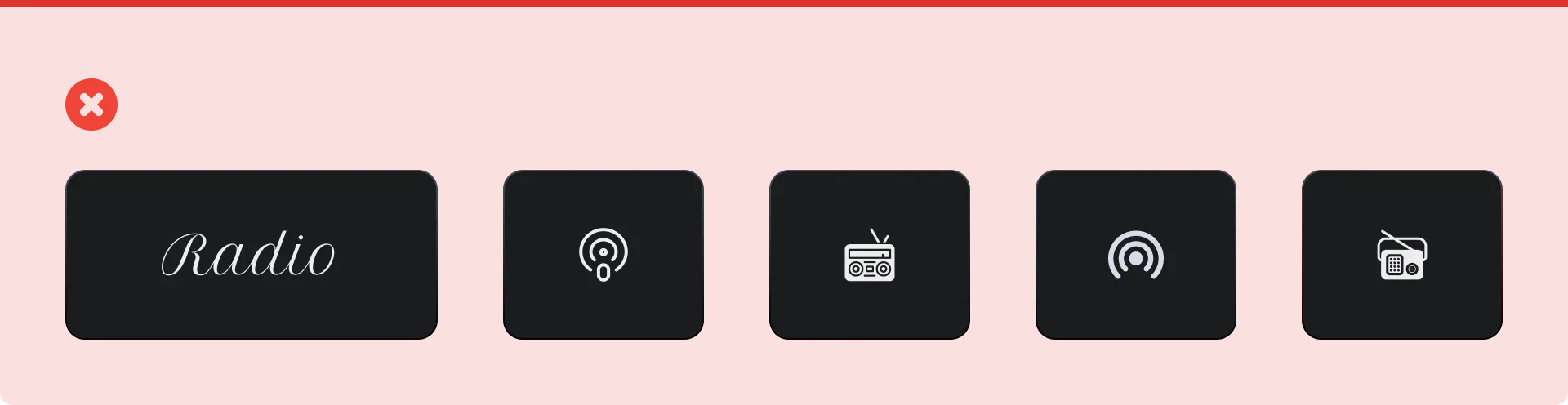
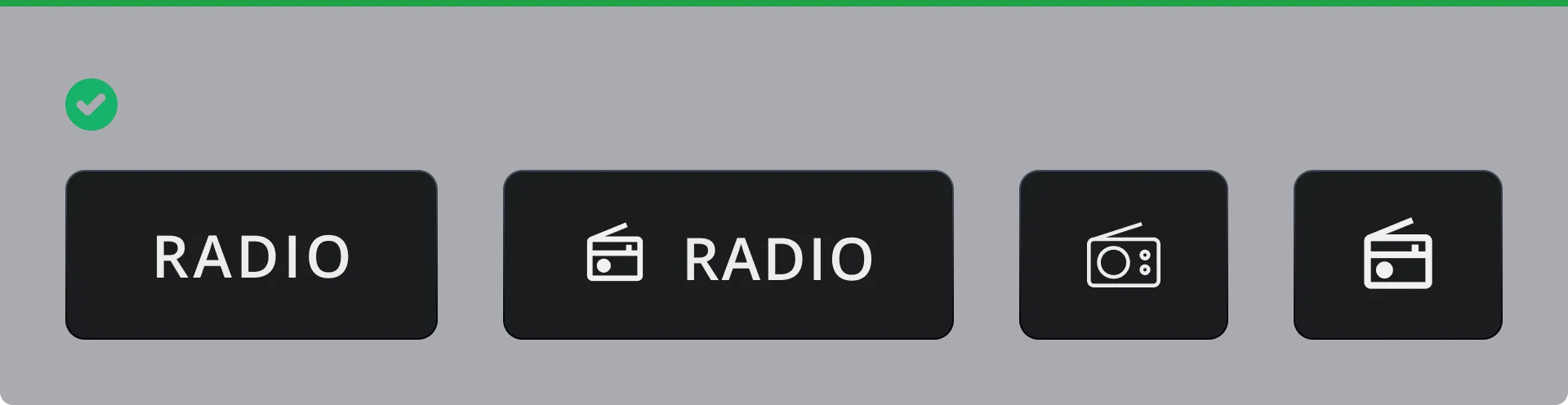
Semantic Intuitiveness: Icons appearance should be intuitive and easily understandable without requiring a lot of cognitive processing. Standardization: Where possible, use icons that conform to existing international standards (like ISO 2575) to leverage existing driver knowledge and avoid confusion across different vehicles.
-
Avoid Clutter: Use sufficient space around icons and avoid overly complex designs that might be distracting. Contextual Support: Space permitting, icons benefit from accompanying text to ensure the driver fully understands the meaning
Interface Screen Buttons
Section titled “Interface Screen Buttons”Buttons let drivers take an action, like confirming a choice or going back. A button has a text label, an icon, or both.
Button styles
Section titled “Button styles”There are three styles. Each one has a different level of emphasis.
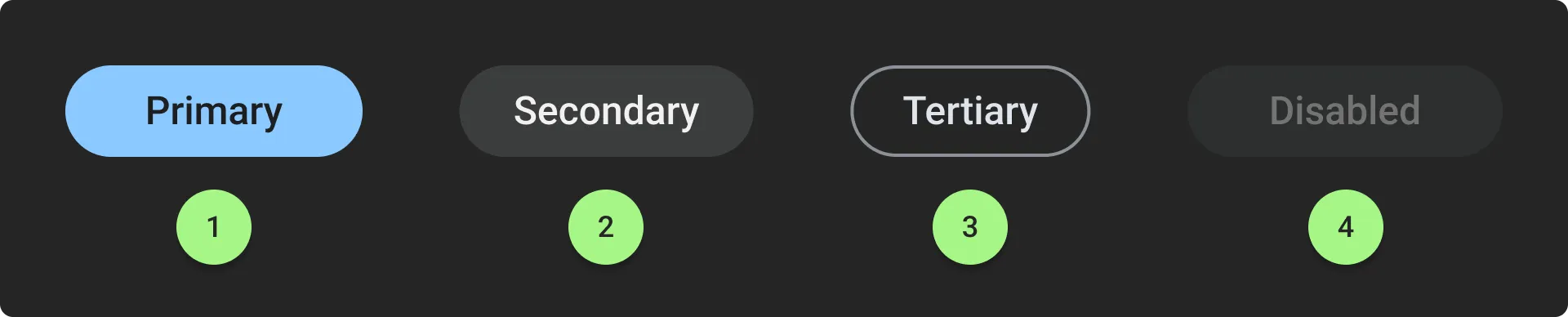
- Primary: A filled button for the main action. It’s the one drivers are most likely to choose.
- Secondary: An outlined button for an alternative to the main action.
- Tertiary: A text-only button with no container. It has the lowest emphasis.
- Disabled: A button that is visible but can’t be tapped right now. It looks faded and doesn’t respond to touch.
Using primary buttons
Section titled “Using primary buttons”One action must take priority. Never place two primary buttons next to each other.
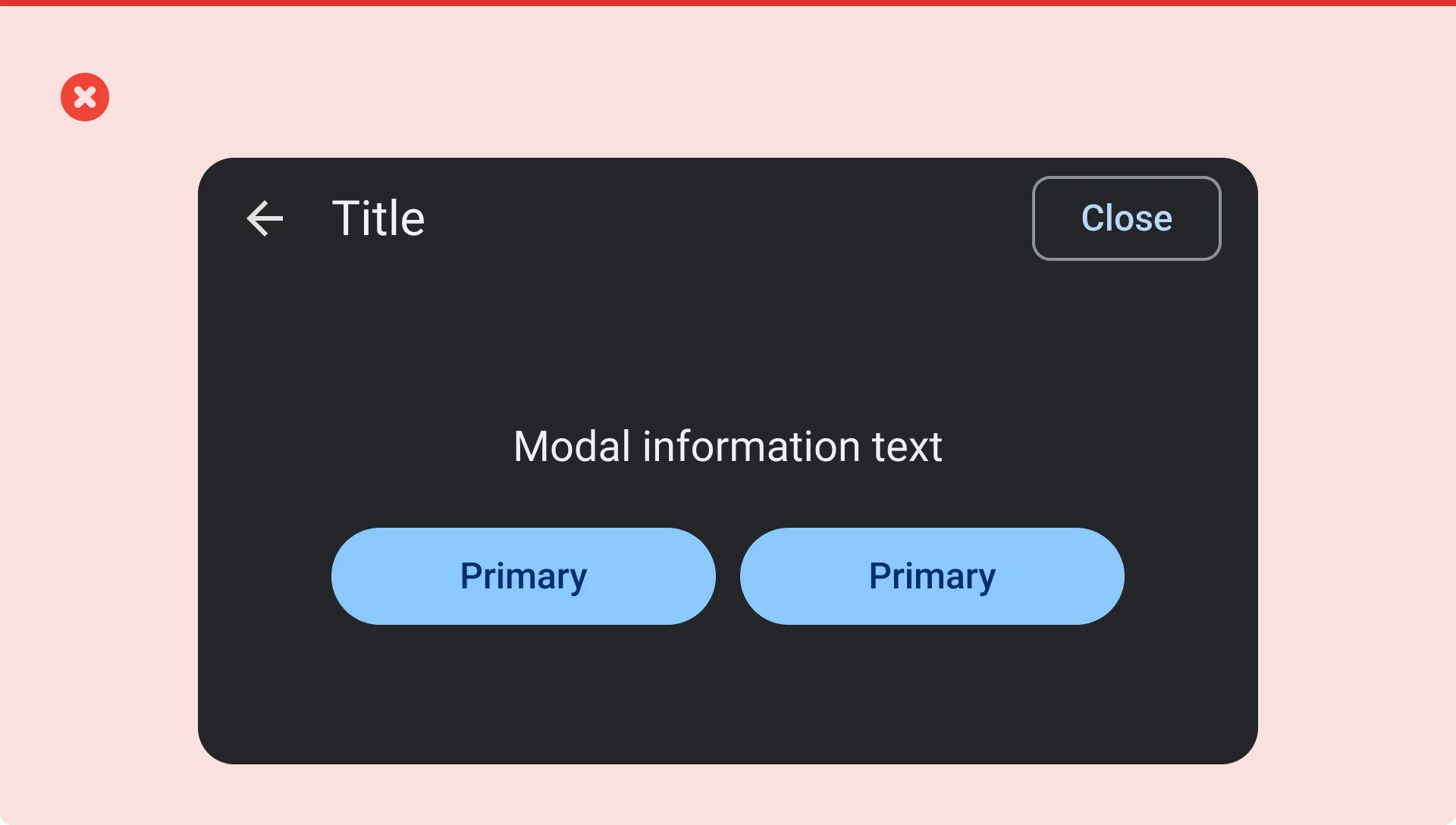
When buttons sit together, make one primary and the other secondary or tertiary.
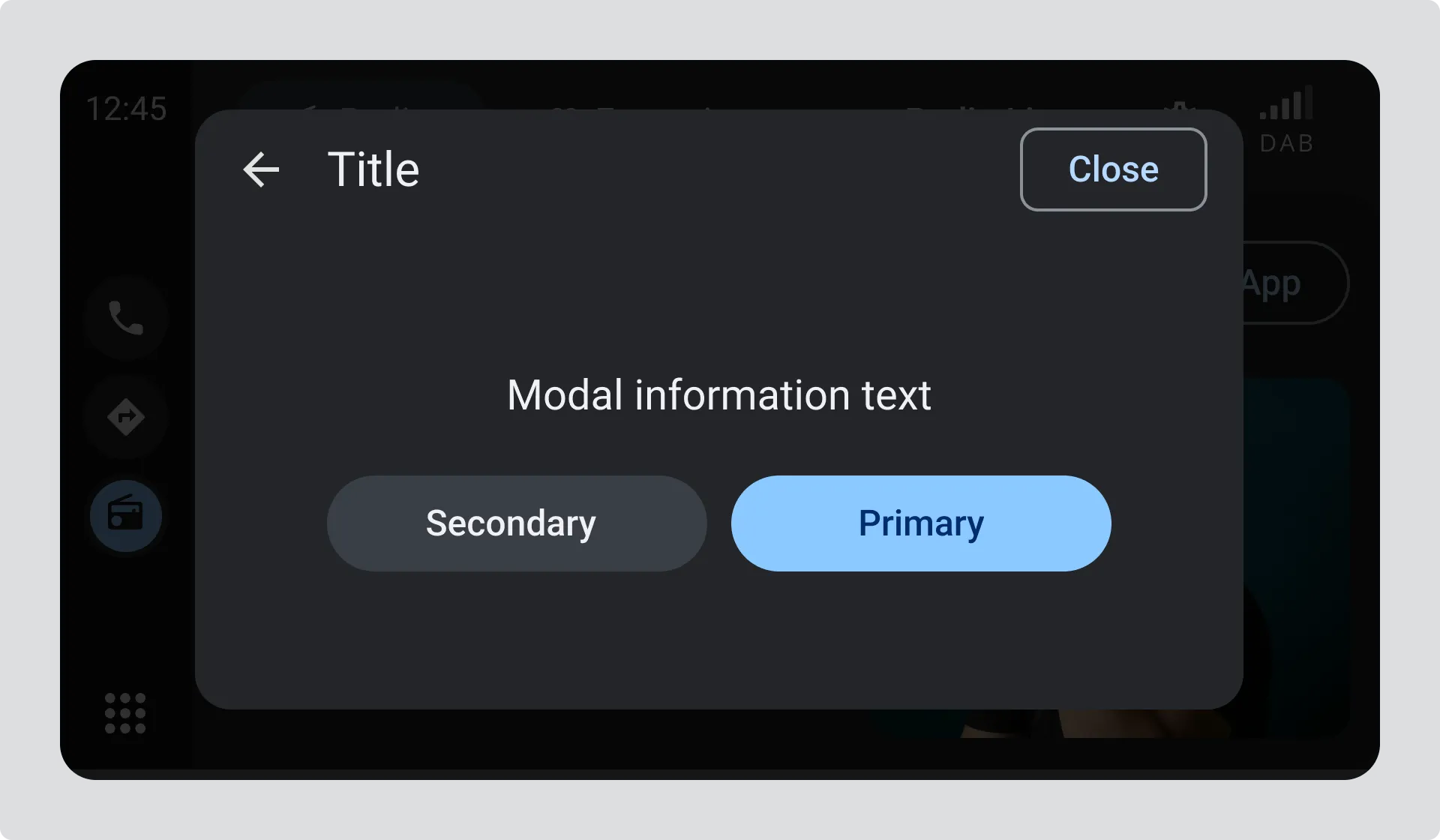
You can use more than one primary button in an interface or pane, as long as they aren’t next to each other.
When every action looks equally important, drivers have to stop and choose. A single clear main action helps them decide quickly and get back to the road.
Tertiary buttons
Section titled “Tertiary buttons”Tertiary buttons are for actions that are useful, but aren’t the main choice. Think “Skip”, “Not now” or “Learn more”.
We use this style so that drivers can always see their options without those options competing with the main action.
Tertiary buttons often sit alongside a primary button, giving drivers an lower priority option.
Disabled buttons
Section titled “Disabled buttons”A disabled button is visible but can’t be tapped right now. It looks faded and doesn’t respond to touch.
We still show disabled buttons because:
- Drivers can see that the action exists and may become available.
- The layout stays the same, so buttons don’t move or disappear.
- Familiar positions are quicker and safer to use while driving.
If it isn’t obvious why a button is disabled, add a short line of text nearby to explain, such as “Select a station to continue”.
Size and spacing
Section titled “Size and spacing”Buttons need to be easy to tap, especially while driving.
- Touch target: at least 40px high, so drivers can tap without looking closely
- Space between buttons: at least 16px, to avoid accidental taps
- Labels: Keep labels short and use simple verbs, like “Save” or “Continue”.
Your labels may be translated, and some languages need much more space than others. Keep your labels concise and ensure there is space for them to grow widthways without breaking the layout. If a label is too long, it can be truncated with an ellipsis, but this should be avoided if possible.