Colour Schemes
Help drivers read the screen in any light.
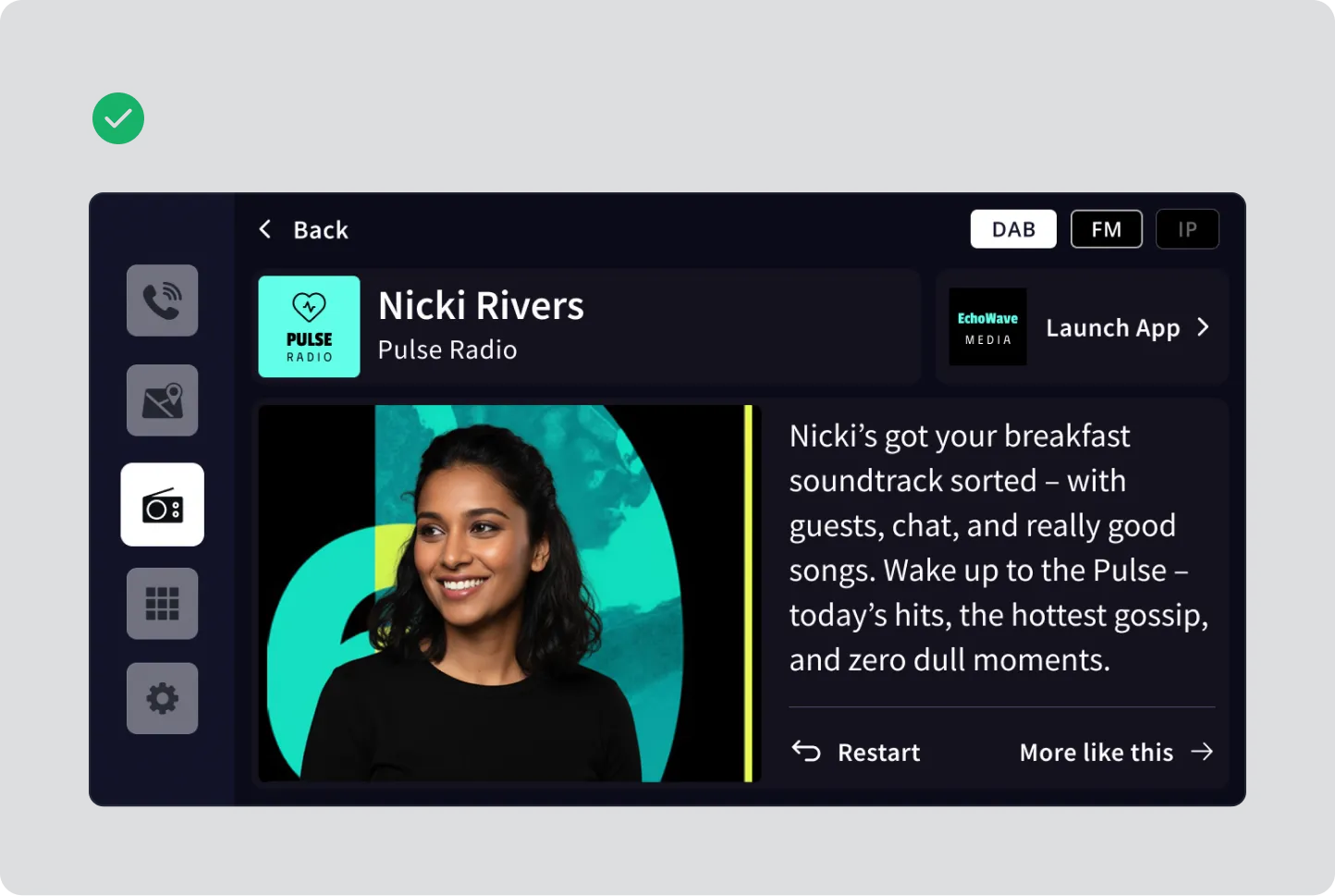
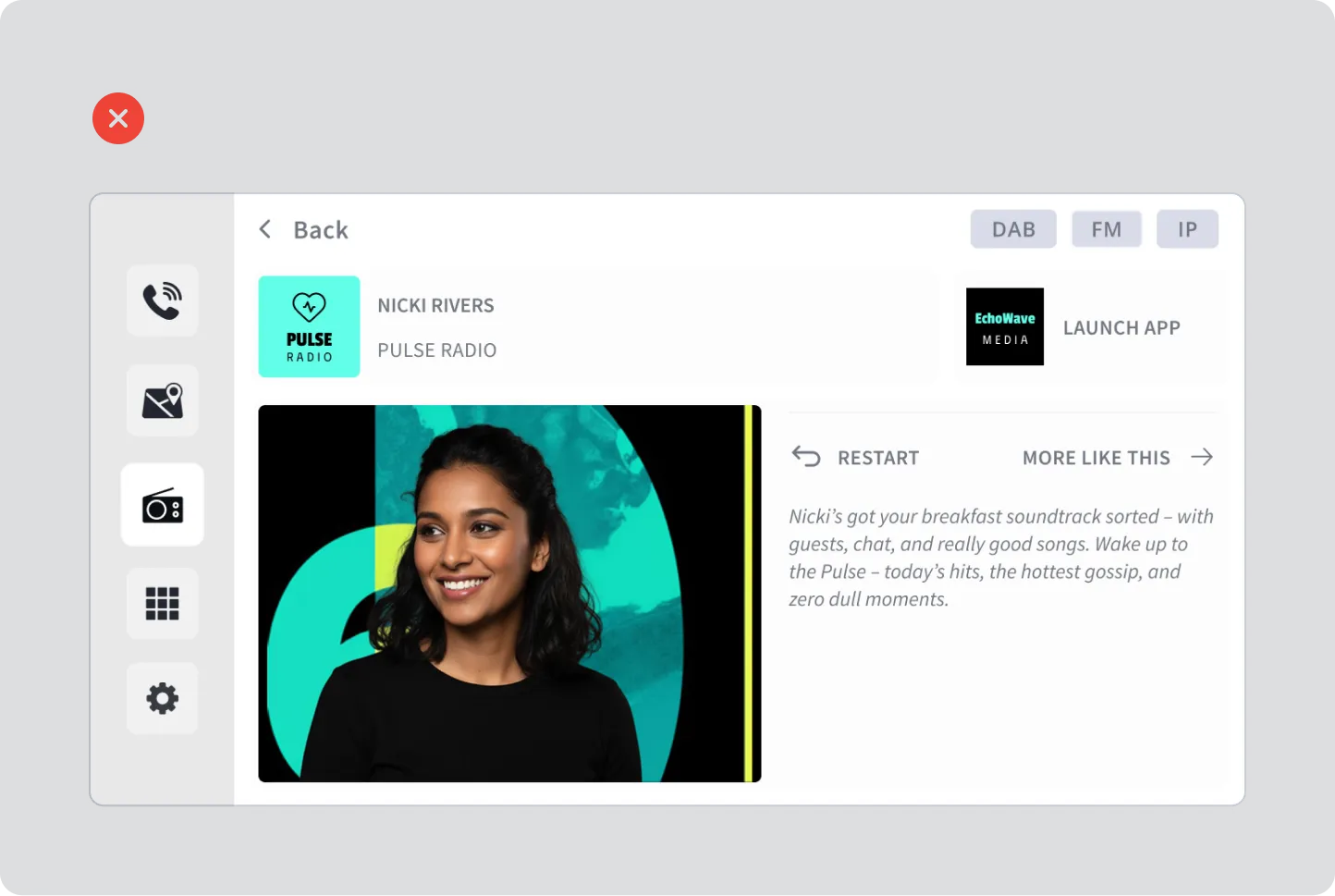
Section titled “Help drivers read the screen in any light.”Drivers use the screen in bright sun, in tunnels, with reflections on the glass, and at night. A dark interface reduces glare in all of these conditions. Dark screens also suit car interiors, which are usually dark, so the screen does not stand out as a bright patch in the cabin.
Within this guideline we’ve used a dark interface as it’s more common, easier to read in changing light, and reduces glare. If you use a light interface, follow the same principles for contrast and meaning.
You can create a dark interface by:
- Using black as the background
- Using light grey, not white, for text and icons
- Using colour only when it has a purpose
Avoid pure white for text and icons. Pure white is very bright on a dark background. It causes glare and tired eyes.
Avoid bright neon colours for the same reason. Choose mid-tone colours instead.
How colour is organised
Section titled “How colour is organised”Colour in the interface has four parts. Each part has a different job.
- Layers show which parts of the screen sit in front of others.
- Text and icon tones show which information is most important.
- The accent colour shows what drivers can tap.
- Overlays help drivers focus when something needs their attention.
The next sections explain each part.
Layers
Section titled “Layers”Help drivers see which parts of the screen are in front.
On a light interface, shadows show depth. On a black background, shadows cannot be seen. Use different shades of grey instead. A lighter grey looks closer to the driver. A darker grey looks further away.
Use four layers, from back to front:
- Background: black. Use it for the screen behind everything, like the main radio view.
- Surface: dark grey. Use it for areas that sit on the background, like a station list or a card.
- Raised: a lighter grey than Surface. Use it for controls that sit on a surface, like buttons and selected items.
- Top layer: the lightest of the four greys. Use it for dialogs and pop-ups, which appear in front of everything else.
For example, a list of stations sits on the background, so it uses the Surface layer. A button inside that list uses the Raised layer. A dialog that appears over the list uses the Top layer.
Follow these rules:
- Always use a lighter layer for something that sits on top of a darker layer.
- Keep the difference in lightness between layers small. Large differences add glare.
- Do not use more than four layers. More layers make them hard to tell apart.
Using layers in the same way on every screen means drivers do not have to work out what is in front. They learn it once and understand every screen.
Text and icon tones
Section titled “Text and icon tones”Help drivers find the most important information first.
Use four tones of light grey for text and icons. Use the brightest tone for the most important information. Use darker tones for less important information. This lets drivers find what they need without reading everything on the screen.
- Primary: the brightest tone. Use it for information drivers need to read quickly, like the station name and the current track.
- Secondary: a darker tone. Use it for supporting details, like the artist name or programme name.
- Tertiary: darker again. Use it for hints and less important details.
- Disabled: the darkest tone. Use it for things that cannot be used right now, like a disabled button.
Follow these rules:
- Use only the tones you need on each screen.
- Use the same tone for the same type of information on every screen. For example, always use the secondary tone for the artist name.
- Use the same tone for an icon and the text next to it.
If all text uses the primary tone, drivers cannot tell what is most important.
The disabled tone is harder to read on purpose. This lets drivers see that something is not available, while still seeing that it exists. The disabled tone does not need to meet the contrast ratios below.
Accent colour
Section titled “Accent colour”Help drivers find what they can tap.
Use one accent colour for interactive elements. This gives drivers one clear signal: if something uses the accent colour, they can interact with it.
You can use the accent colour for:
- The primary button
- Links
- Highlights, like the selected item
Follow these rules:
- Choose a mid-tone colour, not a neon.
- Use the accent colour sparingly. If it appears everywhere, it stops standing out.
- Do not add more accent colours. Extra accent colours make the meaning unclear.
- Check that the accent colour has enough contrast on every layer it appears on.
Overlays
Section titled “Overlays”Help drivers focus on what needs their attention.
An overlay is a see-through black layer placed over the content behind a dialog or alert. It hides the detail behind the message, so drivers can focus on what is in front.
- Use a full overlay behind dialogs that need a decision. A full overlay covers the whole screen.
- Use a partial overlay behind notifications. A partial overlay covers only part of the screen.
Contrast
Section titled “Contrast”Help drivers read text and icons in changing light.
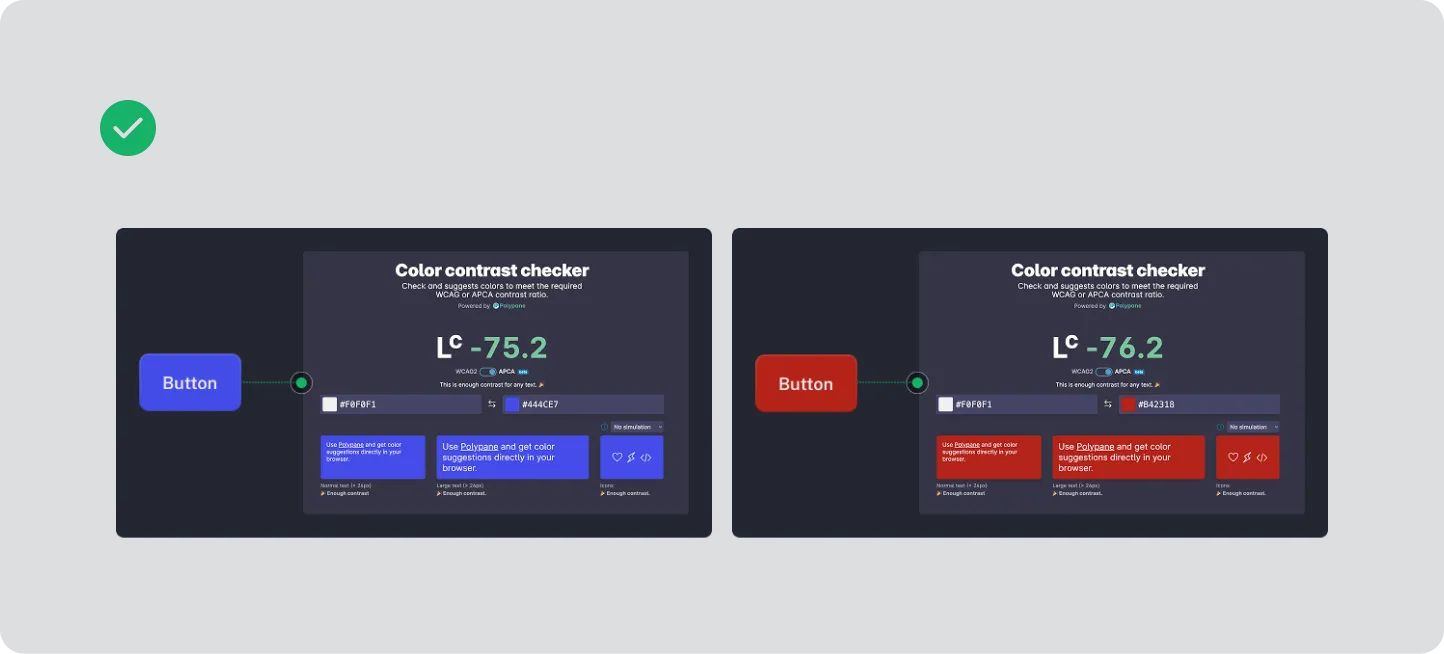
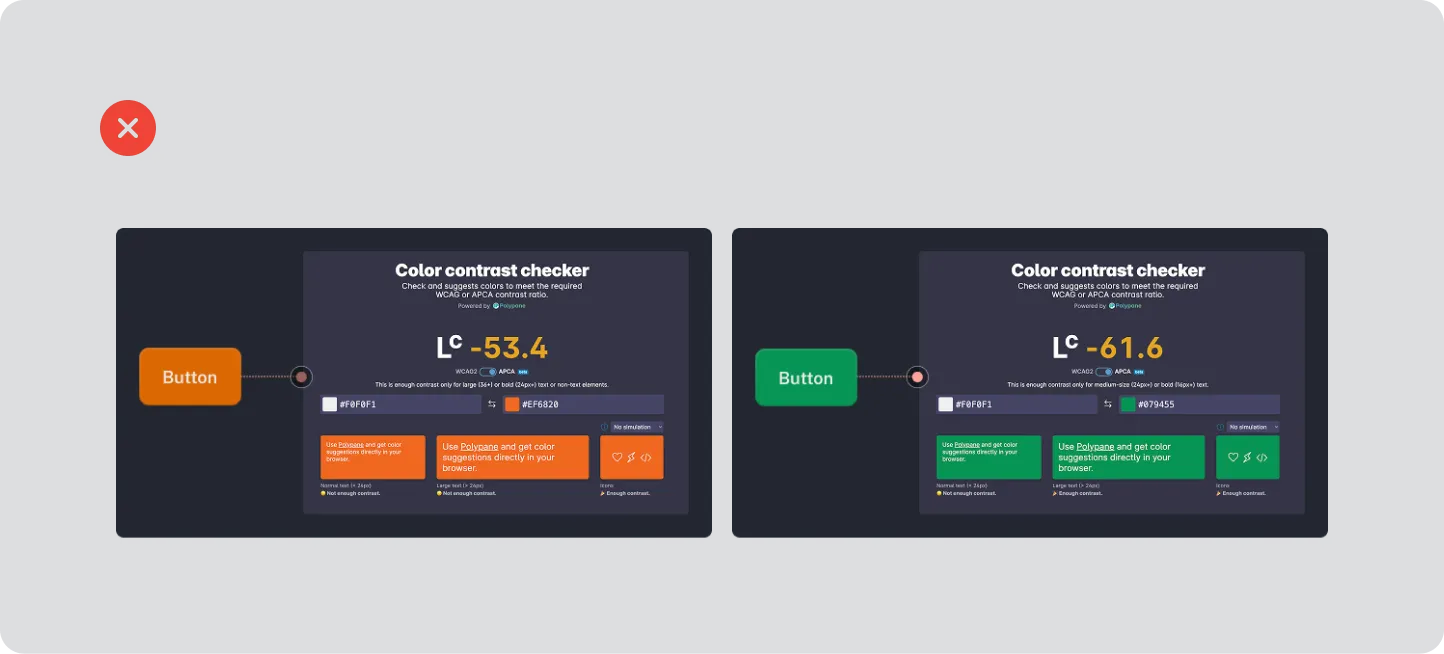
Contrast is the difference in brightness between text or icons and their background. Higher contrast is easier to read. It is measured as a ratio, like 4.5:1. The higher the first number, the better the contrast.
- Use a contrast ratio of at least 4.5:1 for all text and icons.
- Aim for a contrast ratio of 7:1 for information drivers need to read quickly, like the station name, playback state and current track.
- Apply the same contrast requirements in day mode and night mode.
Lighter layers reduce contrast. The same text tone has lower contrast on the Top layer than on the Background. Check each text tone on every layer.
When text or icons sit on an image, check the contrast against the image. If the contrast is too low, place the text on a layer instead.
Check contrast once, when you create your design system. Then use only the approved pairings.
How to check contrast
Section titled “How to check contrast”Use a free WCAG contrast checker, such as colorcontrast.app.
- Enter the text or icon colour as the foreground.
- Enter the layer colour as the background.
- Set the method to WCAG.
- Compare the ratio with 4.5:1, or with 7:1 for information drivers need to read quickly.
- If the ratio is too low, adjust the colour until it passes.
- Write down the ratio for each pairing.
Colour and meaning
Section titled “Colour and meaning”Help drivers who cannot tell some colours apart.
Some drivers cannot tell certain colours apart. Colour also looks different in bright sun and at night. Never use colour as the only way to show something. Add an icon, a shape or a label.
For example:
- Show a favourite station with a filled star icon and the accent colour.
- Show the selected item with a highlight and a change of shape, like a marker or underline.
- Show an error with an icon and a message, not only a red colour.
Set up your colour design system
Section titled “Set up your colour design system”Help drivers see the same colours on every screen.
A design system is a set of agreed colours, sizes and components. It can include your layers, text tones, accent colour, button styles and icons. You define them once and use them on every screen. This makes the interface consistent, so drivers learn where to look and what things mean. It also means you do not need to decide colours again for each screen.
Set up your colour system at the start of the project by:
- Choosing your layers. Start with black, then add lighter greys for each layer.
- Choosing your text tones. Set four tones: primary, secondary, tertiary and disabled.
- Choosing one accent colour. Use a mid-tone, not a neon.
- Checking contrast once. Test each text tone and the accent colour on each layer, using the steps above.
- Fixing anything that fails. Adjust the colour now, before you use it anywhere.
- Naming and recording every approved pairing. For example, “Text primary on Surface”.
- Using only those colours. Do not add new colours to individual screens. If you need a new colour, add it to the design system and check it there.
- Testing in real conditions. Check that text and icons stay readable in bright sunlight. Check that layers are easy to tell apart in low light. Use a colour vision deficiency simulator to check that nothing relies on colour alone.
Everything built from the design system already meets the contrast requirements. You do not need to check every screen or icon again.
If you change a colour later, check every pairing that uses it again.
Colour Palette and Contrast
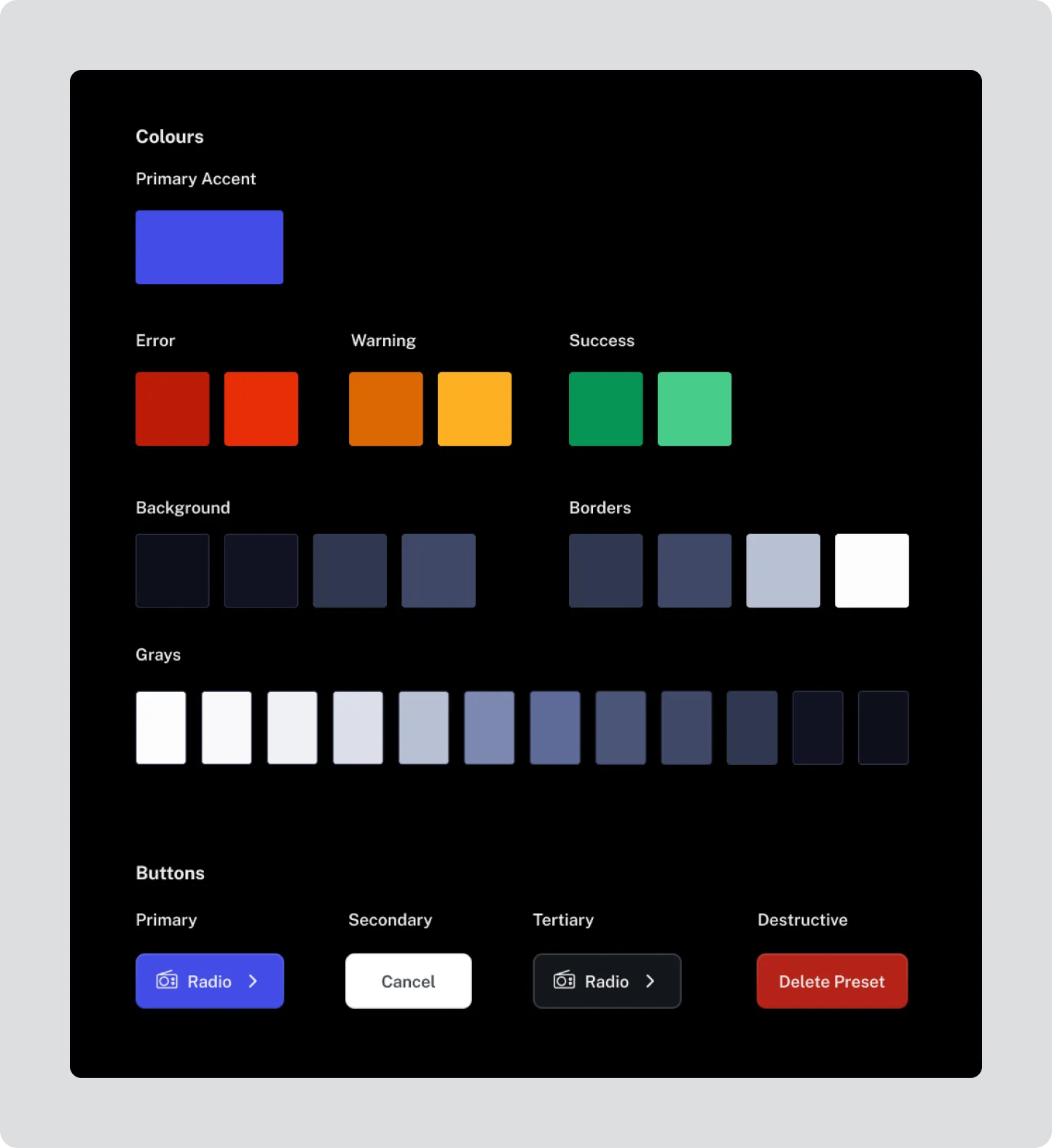
Section titled “Colour Palette and Contrast”Dark interfaces minimise glare and support readability in varying light conditions.
- Use black or dark colours for backgrounds and layers.
- To minimise glare avoid using pure white (#FFFFFF) for backgrounds, text, or icons.
- Use light greys for text #E6E6E6 to maintain visibility without glare
Define a consistent, restricted palette.
Section titled “Define a consistent, restricted palette.”Assign one primary accent colour for all interactive elements (links, buttons, highlights). Do not introduce multiple accent colours.
- Maintain a minimum contrast ratio of 4.5:1 for text and icons.
- Aim for 7:1 contrast for all glance-critical information.
- Verify colour contrast using recognised accessibility testing tools.
Check Colour Contrast
Section titled “Check Colour Contrast”Colour must support readability and recognition, not hinder it. Drivers interact with displays in rapidly changing lighting conditions — daylight glare, reflections, tunnels, and night-time illumination — so all colour use must prioritise legibility, contrast, and universal understanding.
Contrast Ratios
Section titled “Contrast Ratios”Colour contrast between text (or icons) and their background must meet recognised accessibility standards:
- Minimum contrast ratio: 4.5 : 1 for all body text and icons.
- Recommended contrast ratio: 7 : 1 for glance-critical information (e.g. station name, playback state, current track).
- Verify contrast using a WCAG-compliant contrast checker tool for every text–background and icon–background combination.
- Contrast requirements apply in both day mode and night mode variants.
Use of Colour for Meaning
Section titled “Use of Colour for Meaning”Colour alone must never be the only way information is conveyed.
- Supplement colour cues (e.g. “active”, “error”, “favourite”) with shape, iconography, or labels.
- Example: use both a colour highlight and a star icon to indicate a favourite station.
- This ensures the interface remains understandable for users with colour vision deficiencies
Consistent Accent Colour
Section titled “Consistent Accent Colour”Define one primary accent colour for all interactive elements such as links, buttons, and highlights.
- The accent colour must maintain accessible contrast against both background and text.
- Avoid using multiple accent hues that could confuse or dilute meaning.
- Test accent colour legibility on dark and light variants of the interface.
Colour Temperature and Glare
Section titled “Colour Temperature and Glare”Avoid using pure white (#FFFFFF) or saturated neon hues as background or accent colours.
- High-luminance colours increase glare and visual fatigue in the confined cabin environment.
- Use light greys (#E6E6E6–#BFBFBF) instead of white, and mid-tone colours for accent work.
Testing for Accessibility
Section titled “Testing for Accessibility”Test colour accessibility under real-world conditions:
- Bright sunlight: confirm text and icons remain readable and do not wash out.
- Low light: ensure sufficient separation between background and interactive elements.
- Colour vision deficiency simulation: check designs using red–green and blue–yellow filters or simulation plugins to confirm information remains perceivable.