

Iconography
Start with an established icon set
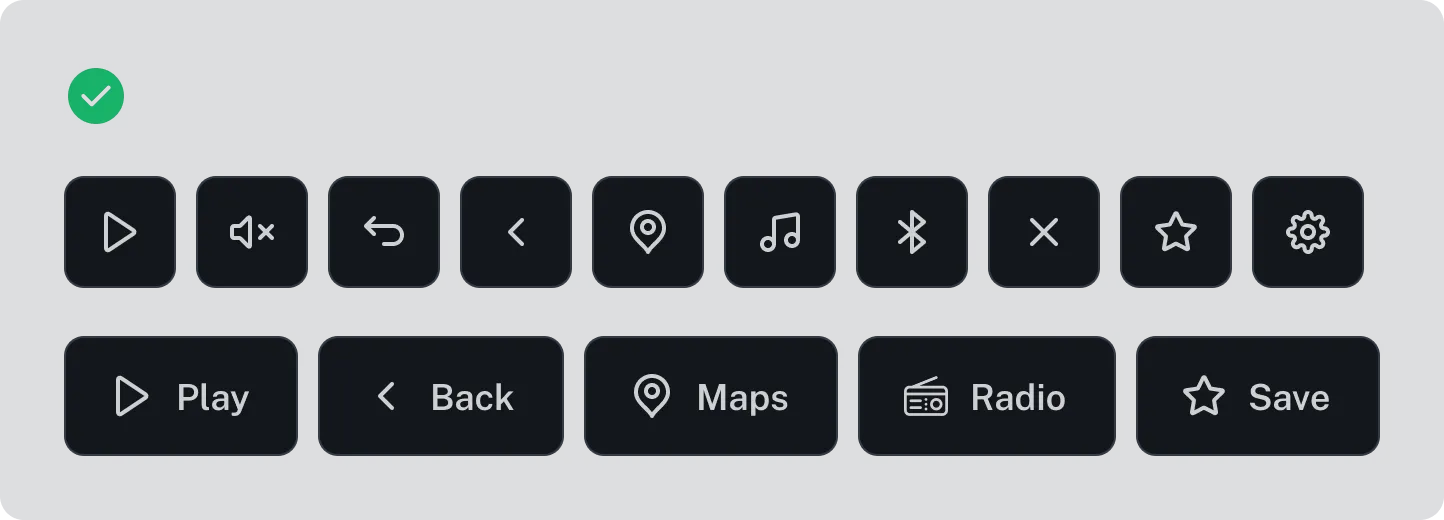
Section titled “Start with an established icon set”Drivers already know many common icons from other apps and devices. Icons they know take less time to understand. Use a recognised icon set before designing your own.
Material Symbols are a good starting point. They are free to use, they cover everything radio needs, and many drivers already know them.
If you need an icon that is not in the set, design one that matches. Use the same line thickness, size and corner style as the icons around it.
Design considerations
Section titled “Design considerations”You can make icons easy to understand by:
- Using clear shapes with few details. Complex icons take longer to understand.
- Making icons large enough to see quickly.
- Using a medium line thickness. Very thin lines are hard to see quickly.
- Using the approved text tones and layers from your design system. This means contrast is already checked.
- Using well-known symbols.
- Leaving space around each icon. Space makes each icon easier to see and tap.
- Adding a text label where space allows. A label makes the meaning clear.
Avoid cluttered or complex icons.
Icons for radio
Section titled “Icons for radio”Help drivers complete the main radio tasks with easily recognisable icons.
- Open radio: use the radio icon. Add a label where space allows.
- Favourite a station: use a star icon. Show an outline star when the station is not a favourite. Show a filled star when it is. Also use the accent colour, so colour is not the only clue.
- Search: use a magnifying glass icon. Use the same icon in every view.
- Settings: use a gear icon. Use the same icon in every view.
Use the same icon for the same task everywhere in the interface. If drivers see a different icon for the same task, they have to stop and work out what it means.
Common mistakes
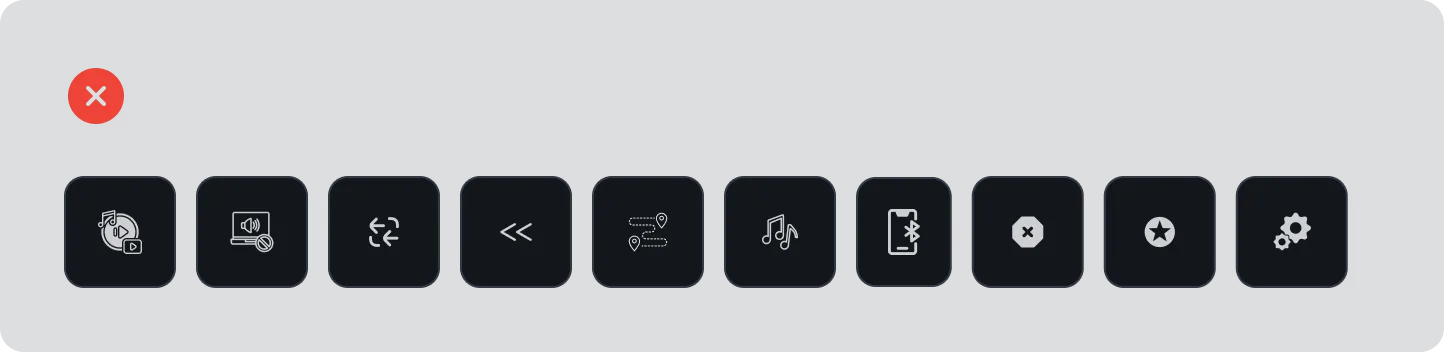
Section titled “Common mistakes”Don’t use icons that are not well known. Drivers have to work out what they mean, which takes time and attention away from driving.
- Don’t use icons that are fiddly or complex.
- Avoid very thin lines, which are hard to see quickly.
- Avoid icons that aren’t quickly associated with the action.
Icons in buttons
Section titled “Icons in buttons”Help drivers understand what a button does.
Buttons can show an icon only, a label only, or an icon and a label. Choose the option that gives drivers the clearest meaning.
- Leave clear space between the icon and the label.
- Use the same tone for an icon and its label.
- In a disabled button, use the disabled tone for both the icon and the label.