

Components
Components are the building blocks of your in-vehicle radio interface. They provide consistent, familiar patterns that drivers can recognize and use quickly while focused on the road.
Understanding components
Section titled “Understanding components”Components include the structural elements that make up your interface: buttons, lists, grids, headers, notifications, and more. Using consistent components across your interface helps drivers navigate quickly without having to learn new patterns.
Key interface components
Section titled “Key interface components”Action strip
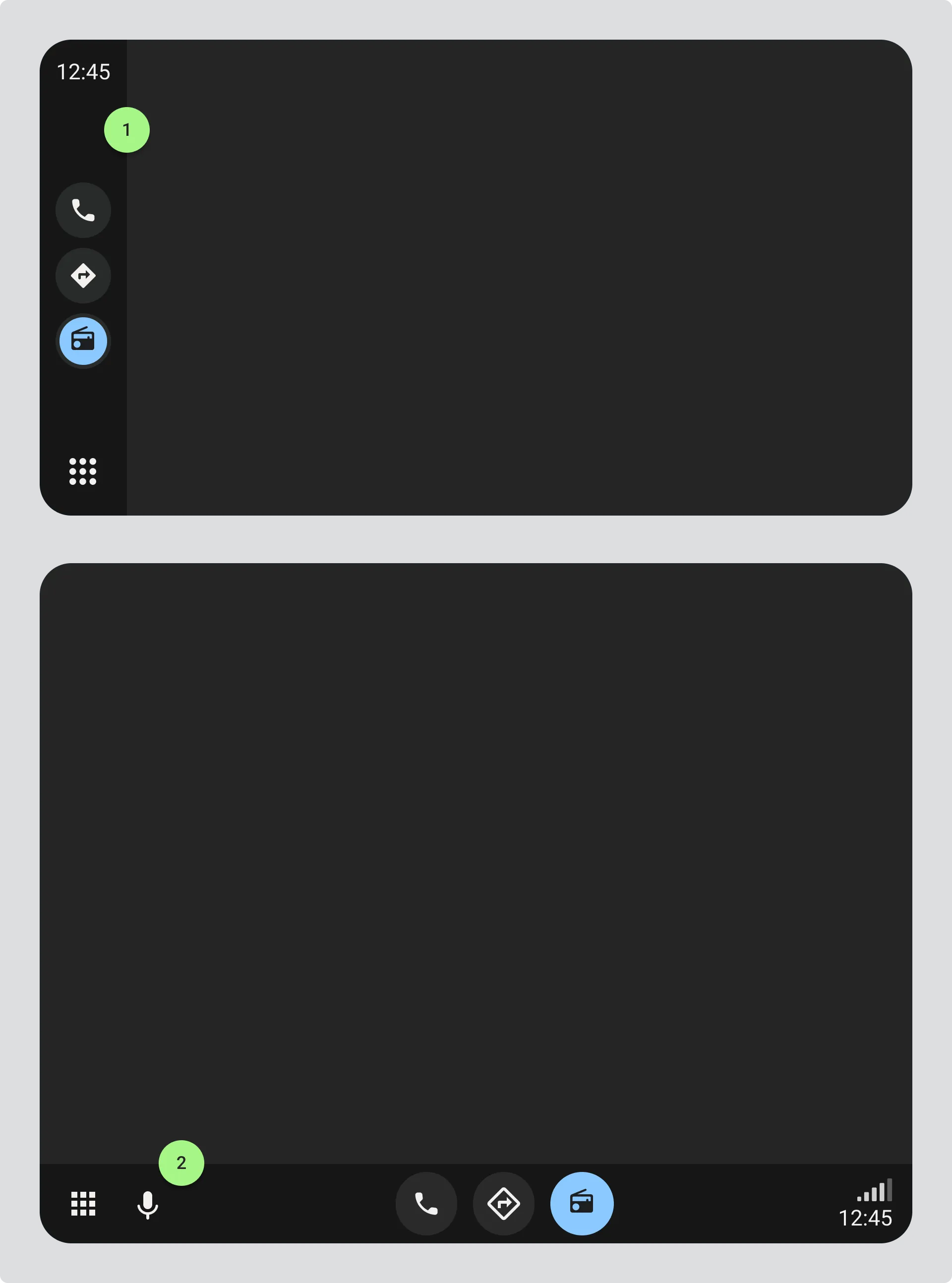
Section titled “Action strip”A horizontal row of buttons or actions, typically placed at the bottom or to the side of the screen. Use this for primary actions like play/pause, skip, or accessing key.
- Action strip attached to the left of the screen.
- Action strip attached to the foot of the screen.
Headers
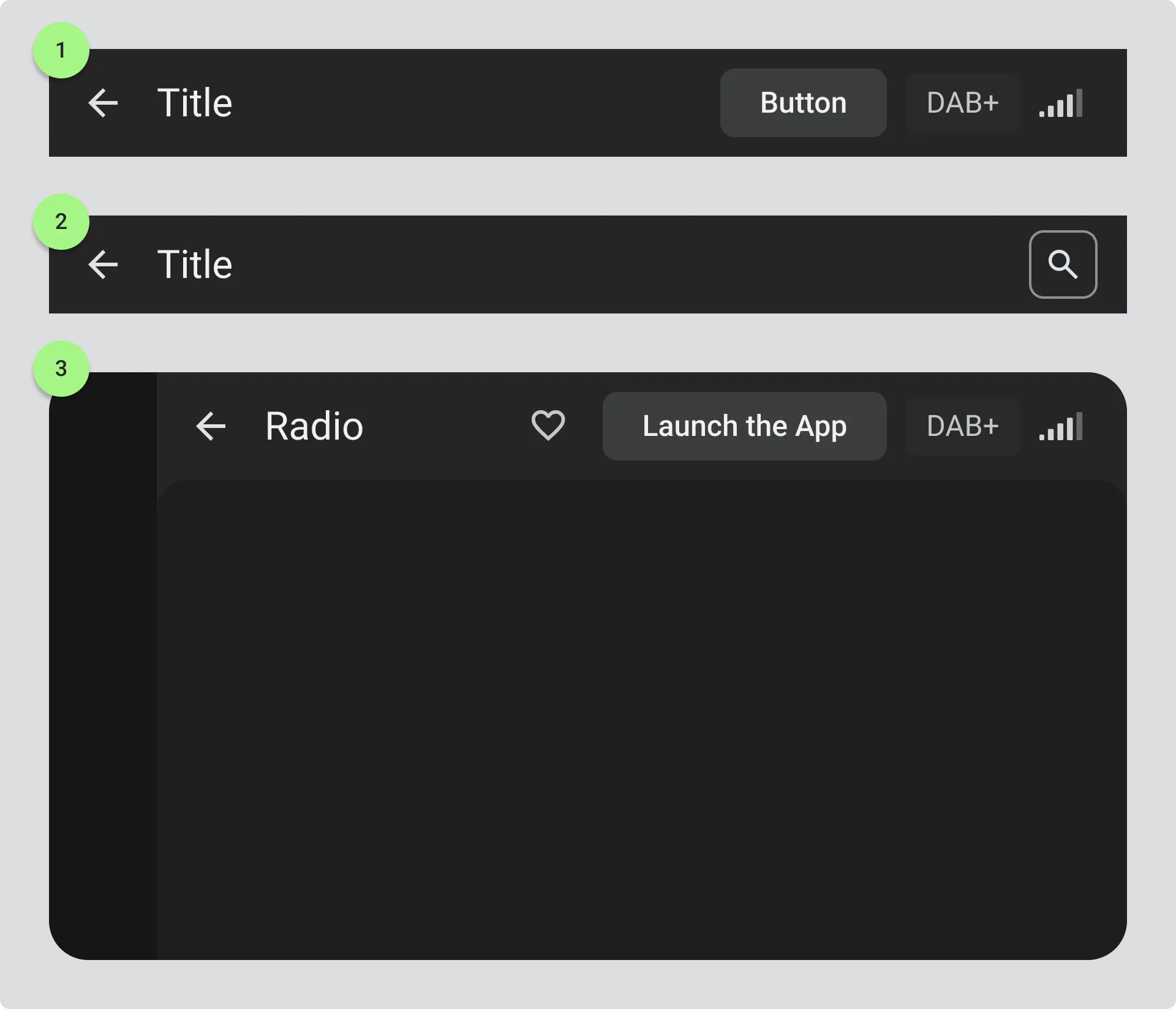
Section titled “Headers”The top section of a screen that shows context like the current view title or key information. Keep headers consistent across screens so drivers always know where they are.
- Header showing a back arrow to return to the previous screen, the current view title, and a menu button for additional options.
- Header with the option for searching content, for instance looking for a specific station or programme.
- Headers are always attached to the top of the screen and remain consistent across most screens.
Buttons
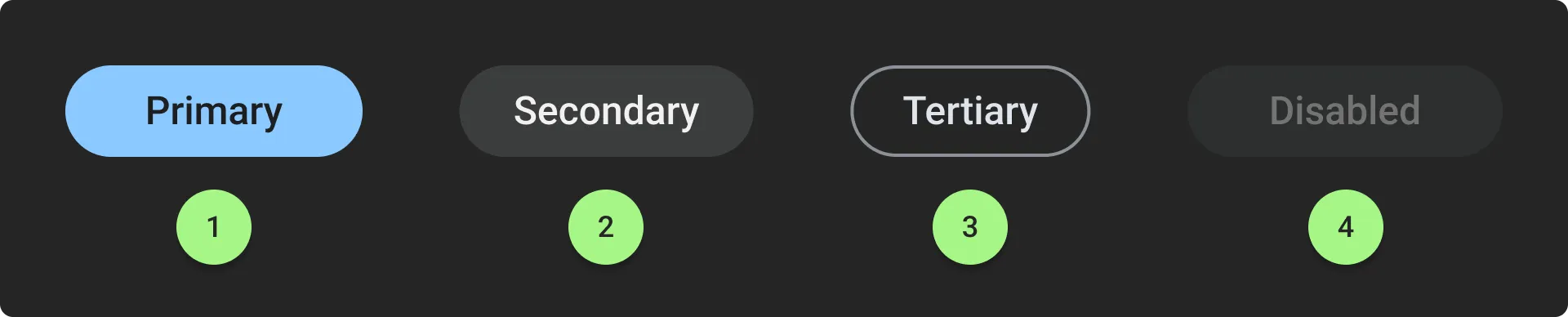
Section titled “Buttons”Interactive elements that trigger actions. Make buttons large enough to tap easily (minimum touch target size) and use clear, action-oriented labels. Buttons are consistent and follow a primary action, secondary action, and tertiary action hierarchy.
Primary actions are the most important and should be visually prominent, while secondary and tertiary actions are less critical and can be styled more subtly. A disabled button should be clearly distinguishable from an enabled one. Here it’s shown at 38% opacity.*
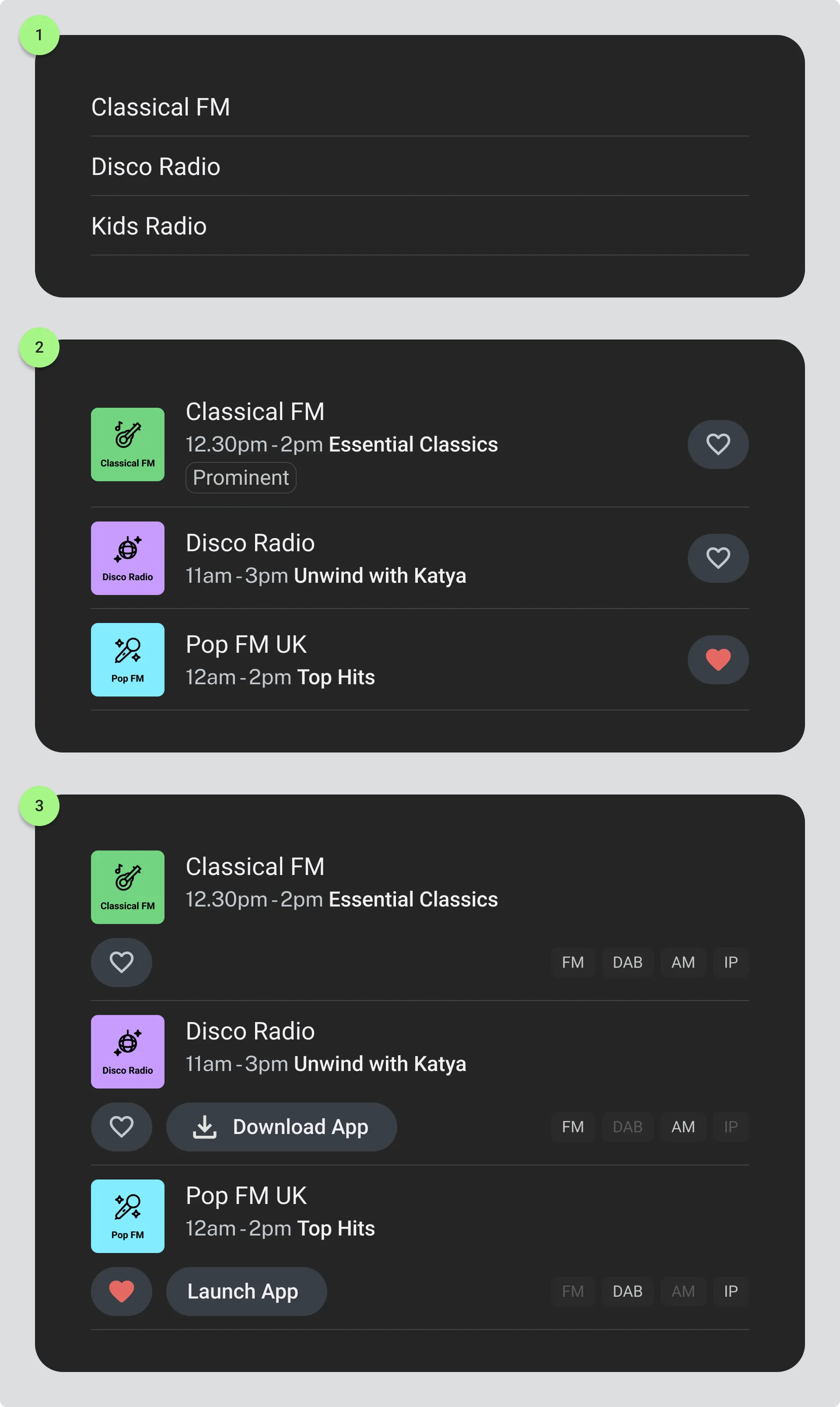
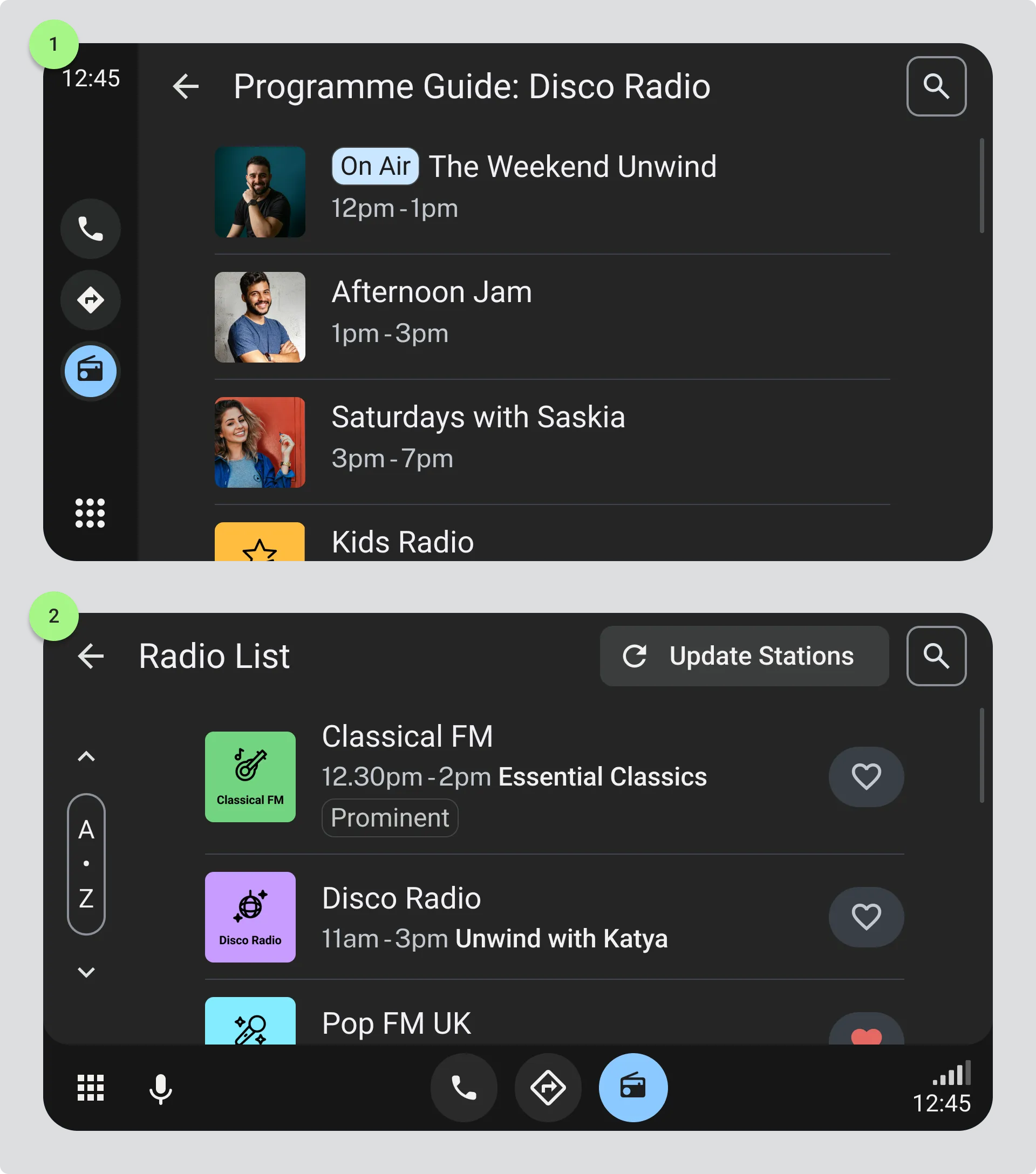
Individual items within lists, showing information like station name, programme title, and time. Keep row layouts consistent so drivers can scan lists efficiently. Add dividing lines between each row to help separate items visually. Rows can also include interactive elements like buttons or toggles for quick actions.
- Simple text list
- Thumbnail list with image, title, and subtitle. Keep simple actions like favouriting (heart icons) to the right of the row so they are easy to reach.
- Lists with multiple actions, like a button or a favourite icon should have a clear hiearchy for the user. For instance the thumbnail and title are key information and should be the first section. Any additional secondary actions should be positioned below.
Vertical scrolling lists of items, like station lists or programme guides. Keep list items consistent in height and format so drivers can scan them quickly.
- Example: A programme guide for a radio station with presenter images, programme times and titles.
- Example: A list of radio stations with station name, frequency, and thumbnail logo.
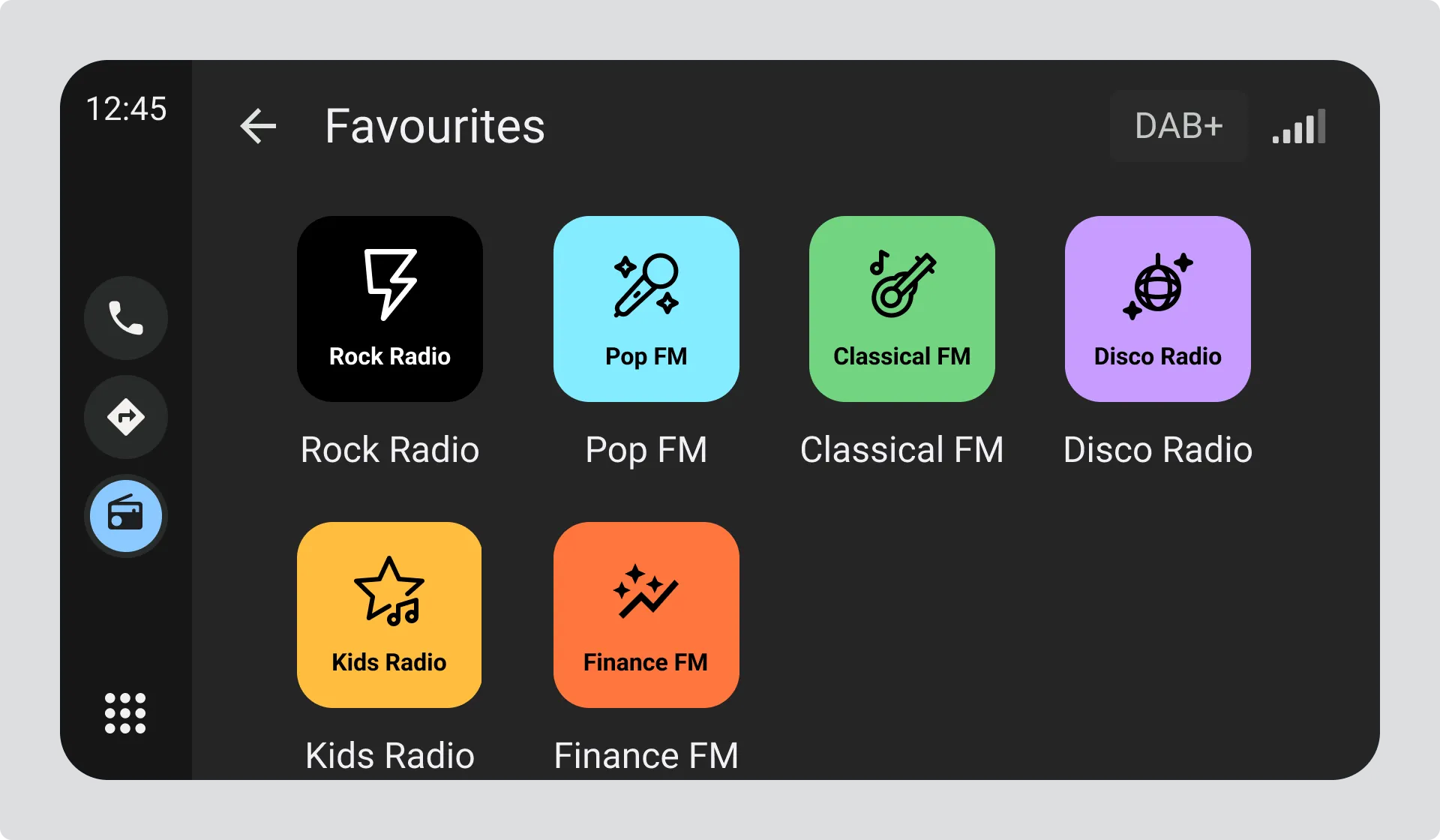
A grid layout for displaying multiple items at once, like favorite stations or programme thumbnails. Useful when you have space to show more options simultaneously.
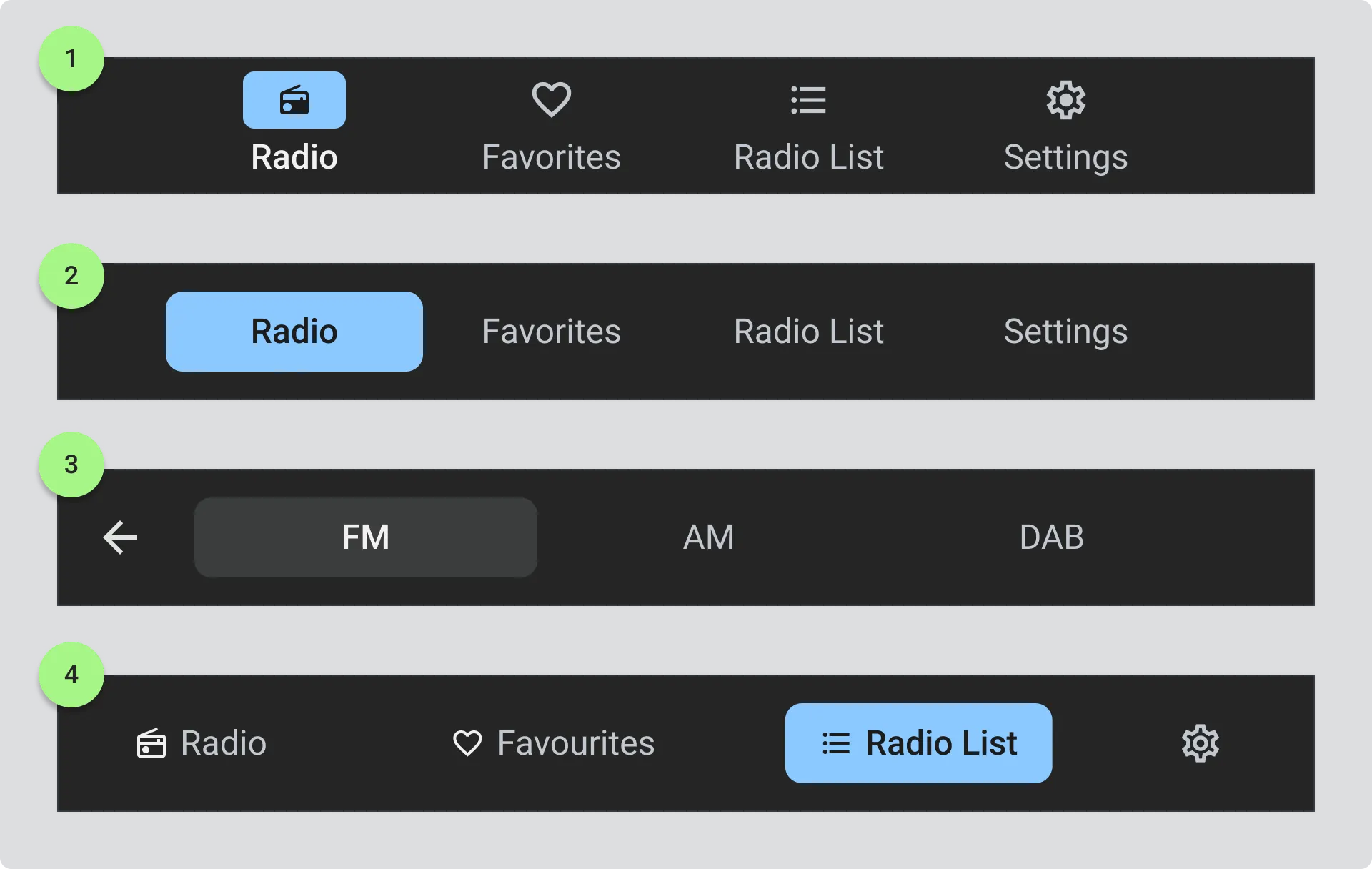
Allow switching between different views or sections, like moving between “Radio”, “Favourites”, and “Radio List”. Use tabs for top-level navigation that drivers access frequently.
- Stacked icon and text tab title are space saving for longer text and languages which have longer words.
- Primary button tabs are visually prominent and should be used for the most important sections.
- Secondary tabs can be used for less critical sections.
- Icon and text button tabs are glanceable and clear but take up more space. Use them when you have enough room and want to provide more context.
Toast notifications
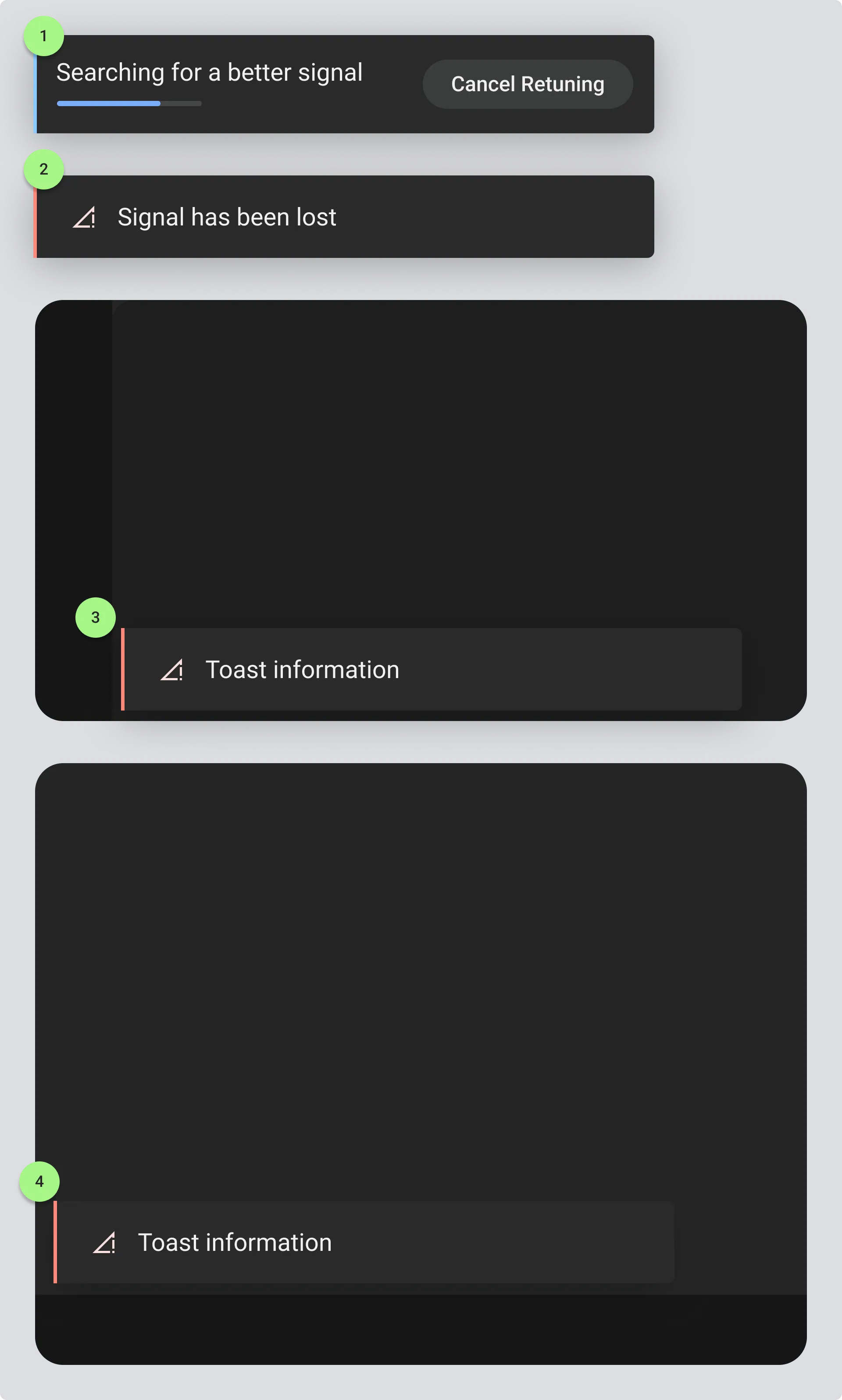
Section titled “Toast notifications”Brief messages that appear temporarily to confirm actions or show status updates, like “Station added to favourites”. Keep these short and don’t require interaction to dismiss.
- Active toast notification with primary colour edge and button and progress bar subtly informs the user that an action is in progress.
- Warning toast notification with red error edge informs the user that an action has failed and requires attention.
- Position the toast notification away from elements such as the action strip or any buttons.
- Consider the placement of the toast notification so that it does not block any key information or actions.
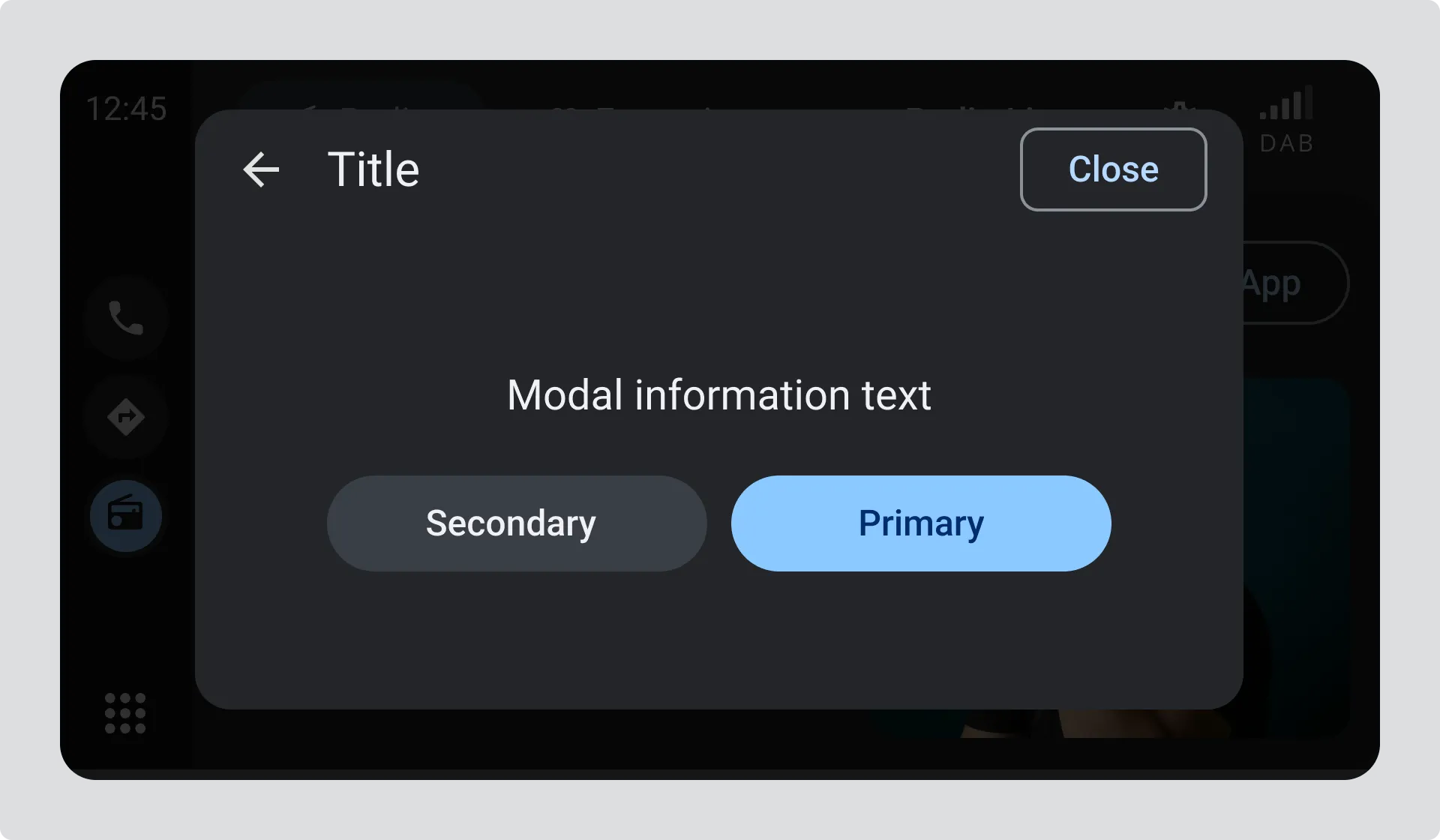
Modals and dialogs
Section titled “Modals and dialogs”Overlays that require driver attention or input, like confirming an action or explaining why something isn’t available. Use sparingly and only when necessary. Give a clear close or dismiss option, and avoid requiring precise input or multiple steps.
Design considerations
Section titled “Design considerations”Keep it simple
Section titled “Keep it simple”Don’t overload screens with too many components. Prioritize what drivers need most and hide less important features until they’re needed.
Maintain consistency
Section titled “Maintain consistency”Use the same component patterns throughout your interface. If you use a certain button style for one action, use it for similar actions everywhere.
Make touch targets large
Section titled “Make touch targets large”All interactive elements should be easy to tap, even when the vehicle is moving. Minimum recommended touch target size is typically 48x48 dp with adequate spacing between targets.
Consider the driving context
Section titled “Consider the driving context”Components should work with minimal attention. Avoid interactions that require precision or multiple steps.
Layout patterns
Section titled “Layout patterns”Standard layout structure
Most screens follow a common structure:
- Header at the top showing context
- Main content area in the middle (list, grid, or detail view)
- Action strip at the bottom for primary actions
This consistent structure helps drivers know where to look for information and actions.
Spacing and hierarchy
Use spacing to group related items and separate different sections. Clear visual hierarchy helps drivers understand the structure at a glance.
Message templates
Section titled “Message templates”For situations where you need to communicate with the driver (like errors, empty states, or confirmations), use clear message templates that:
- Explain what happened in plain language
- Provide clear next steps or actions
- Use buttons with action-oriented labels
Further reading
For detailed specifications on component sizing, spacing, and behavior, see platform-specific guidelines for your implementation.